
Choosing the Right Monitor with a Webcam for Home Office Workers
A tidy desk, a tidy mind. Yet, for many remote workers and students, the reality is a tangle of cables: a loose webcam balancing precariously on the screen, an external microphone getting in the way, and extra USB ports being occupied. A monitor with a webcam seems like the perfect all-in-one solution. But not all models are created equal. Many manufacturers cut corners on the built-in extras, leaving you with a disappointing experience.
Before you invest in a new home office monitor, it's important to understand the common pitfalls. This will help you avoid buyer's remorse and choose a model that genuinely enhances your productivity.
The 2 Biggest Pitfalls of a Monitor with a Webcam
The marketing promises a seamless experience, but in practice, many users encounter the same problems. Pay attention to these two points:
- Mediocre Webcam and Microphone Quality: The most common complaint is that the built-in camera and microphone underperform. A grainy 720p webcam and a microphone that picks up every keystroke detract from your professional image during an important online meeting. You need a monitor for video calls that presents you clearly in both video and audio, not one that constantly lets you down.
- Fixed, Non-Ergonomic Stands: An all-in-one monitor is intended for long workdays. However, many budget models have a fixed stand that is not height-adjustable or rotatable. This forces you into an unnatural posture, which can lead to neck and back pain over time. A good ergonomic setup is not a luxury, but a necessity.
What to Look For: The Core Specifications
To avoid the pitfalls, focus on a few verifiable specifications. These will determine whether a monitor with a built-in webcam and microphone is right for your workspace.
1. Webcam and Microphone Quality
Look beyond the simple mention of "built-in webcam." The details are crucial.
- Webcam Resolution: Aim for a Full HD (1920x1080p) webcam. This is the current standard for sharp, clear video calls. An added bonus is a physical slider for the lens (privacy shutter), so you can be sure no one is watching when the camera is not in use.
- Microphone Technology: Look for terms like noise-cancelling or beamforming. These technologies help to isolate your voice from ambient noise, such as talking housemates or traffic.
2. Screen Size and Ergonomics
The right combination of screen size and adjustability makes the difference between comfortable work and constant frustration.
- Size: A 24-inch monitor with a webcam is an ideal size for most desks. It offers sufficient workspace without being overwhelming. The standard Full HD resolution (1920x1080) is sharp enough on this size for word processing and video calls.
- Ergonomics: A good monitor should adapt to you, not the other way around. Check if the stand is height-adjustable, tiltable, and preferably also swivelling. This allows you to position the screen at eye level and perfectly adjust the viewing angle.
3. Connectivity
Check if the monitor has the right ports for your equipment. Besides the standard HDMI and DisplayPort, a USB-C port is a major advantage for laptop users. It allows you to charge your laptop and transmit video, audio, and data simultaneously with a single cable.
Recommendations for Different Users
Based on the criteria above, we have selected a few models that suit different needs and budgets.
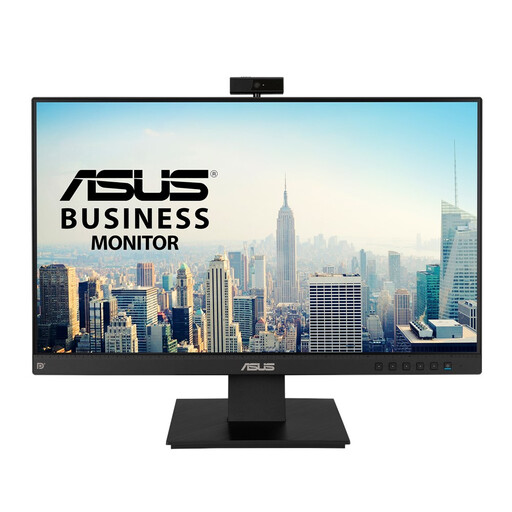
ASUS BE24EQK computer monitor 60.5 cm (23.8")
Why This Fits Their Persona: Ideal for those who want a tidy and functional workspace without the fuss. This monitor combines all the essentials for video calling into one device, perfect for daily Teams or Zoom calls.
This model features a Full HD (2MP) webcam, a significant upgrade from the grainy 720p cameras found in many other monitors. The microphone uses a beamforming array to filter out background noise.
The ASUS BE24EQK is a true all-in-one solution. Its IPS panel ensures great viewing angles, and the built-in privacy shutter offers peace of mind.
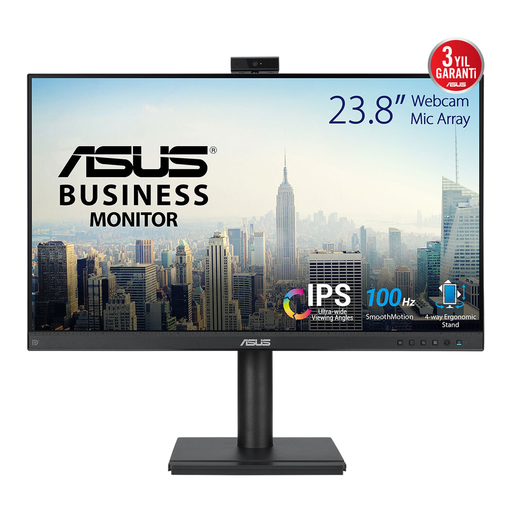
ASUS BE249QFK Computer Monitor 60.5cm (23.8")
Why This Fits Their Persona: For professionals who spend long days at their desk, good posture is essential. This model offers the same all-in-one benefits but with a superior ergonomic stand.
This model directly addresses the ergonomics pitfall. The stand is fully adjustable: height, tilt, swivel, and pivot. This allows you to effortlessly create a healthy and comfortable workspace.
The combination of a Full HD webcam, microphone, and a fully ergonomic stand makes this an excellent choice for long-term, intensive professional use.
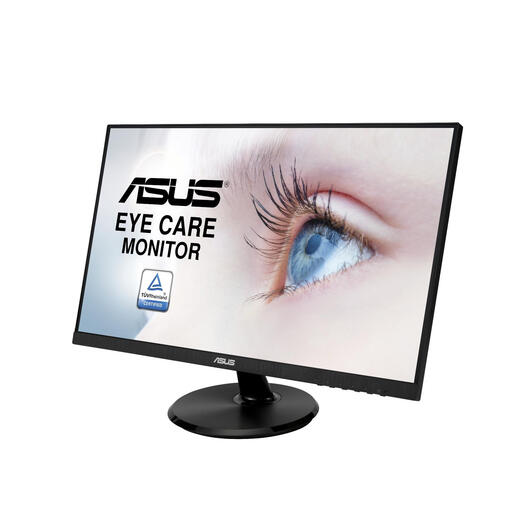
ASUS VA27DCP LED Display 68.6cm (27")
Why This Fits Their Persona: For users who prioritise image quality and screen real estate and want the flexibility to choose their own high-end external webcam. This 27-inch screen provides an excellent foundation for a powerful setup.
Instead of compromising with a built-in webcam, you consciously opt for a superior screen. You avoid the pitfall of a mediocre webcam by adding a specialised model that meets your high standards.
The large 27-inch IPS screen offers ample workspace. The USB-C port with 65W Power Delivery enables a minimalist setup with just a single cable to your laptop for power and video.
Looking for more options?
We have compiled a complete, up-to-date list of products that fully meet these strict selection criteria and local safety regulations.
Frequently Asked Questions
Is a monitor with a built-in webcam and microphone good enough for professional use?
For most professionals participating in video meetings on platforms like Zoom, Microsoft Teams, or Google Meet, a monitor with a good Full HD (1080p) webcam and a clear microphone is perfectly adequate. The models we've recommended, such as the ASUS BE24EQK, are specifically designed for this purpose. For content creators, streamers, or users who demand the absolute highest image quality, a separate, high-end 4K webcam combined with a studio microphone may be a better choice.
What should I look for when installing a monitor with a webcam?
Installation is typically very straightforward. The webcam and microphone usually connect to your computer via a single USB cable, which is often included. Modern operating systems like Windows and macOS will automatically recognise the hardware (plug-and-play). The most important step is to set up the monitor ergonomically: ensure the top edge of the screen is at or just below eye level to guarantee a natural viewing angle for both your eyes and the camera.
What is the advantage of a 24-inch monitor with a webcam compared to just using a laptop?
The advantages are significant. First, ergonomics: an external monitor allows you to work in a healthy, upright posture instead of hunching over a small laptop screen. Second, a larger screen, like a 24-inch model, provides much more space for multitasking. You can open documents side-by-side and have a better overview. Finally, you create a fixed, tidy workspace, allowing your laptop to transform into a fully-fledged workstation with a single cable.