
Choosing an External SSD: A Guide to Avoiding Buyer's Remorse
A full hard drive, slow file transfers, or the fear of losing important photos and documents. Sound familiar? An external SSD seems like the perfect solution: fast, compact, and reliable. But the market is flooded with marketing claims that don't always reflect reality. Before you invest in new external storage, it's crucial to know what to look for.
As a Joybuy Product Recommendation Officer, I'll help you cut through the noise. We'll focus on the specifications that truly matter, so you can choose a model that fits your needs without paying for features you won't use.
The 2 Most Common Pitfalls When Buying an External SSD
Manufacturers love to advertise impressive numbers, but they don't always tell the whole story. These are the two main pitfalls:
- The "Up To" Speed Myth: Many SSDs promise speeds "up to 2,000 MB/s". What's often not clearly stated is that this requires a computer or laptop with a specific USB 3.2 Gen 2x2 port. Most devices have a standard USB 3.2 Gen 2 (10 Gb/s) or even Gen 1 (5 Gb/s) port, which means the actual speed will be much lower. You end up paying for performance you can't utilize.
- Seemingly Rugged, Practically Fragile: A portable SSD needs to be durable. A sleek, metal design looks great but offers little security without specific drop protection. For those who are often on the move, like photographers or students, a model that can survive a fall from a desk is essential.
Core Specifications: What to Look For
To make an informed choice, we'll focus on three objective criteria. These determine the performance and usability of your external storage.
1. Speed and Connection: What Does USB 3.2 Mean?
The speed of an external SSD depends on both the drive itself and the USB connection. These are the most common standards:
- USB 3.2 Gen 2 (10 Gb/s): Offers speeds up to approximately 1,050 MB/s. This is an excellent standard for most users, including gamers and content creators who work with large files. Models like the Samsung T7 use this standard.
- USB 3.2 Gen 2x2 (20 Gb/s): Can reach speeds up to 2,000 MB/s. This is particularly useful for professionals who constantly move very large files (like 8K video). However, you must verify that your computer supports this port. The Samsung T9 is an example of an SSD with this technology.
2. Storage Capacity: How Much Do You Need?
The required capacity depends entirely on your usage:
- 1TB External SSD: A popular choice for general use. Sufficient for creating backups, storing a sizable photo collection, and carrying work documents.
- 2TB External SSD: Recommended for gamers looking to expand their game library and for professionals (video editors, graphic designers) who work with large project files.
- 4TB and more: For the data-heavy user who wants to keep a complete archive or an extensive media collection stored externally.
3. Compatibility: Will It Work with Your Devices?
An SSD should work with your equipment right out of the box.
- External SSD for Mac: Most SSDs are formatted for Windows (NTFS) by default. To use them with a Mac, they need to be reformatted to APFS or HFS+. This is a simple process using the 'Disk Utility' on macOS. Some models come pre-formatted for Mac use.
- External SSD for PS5: To play PS4 games directly from the drive or to store PS5 games, Sony requires a USB 3.0 (or higher) connection and a minimum speed. An SSD with around 1,000 MB/s is very suitable for this purpose.
Recommended Products to Consider
Based on objective specifications, we have selected a few models that suit different user profiles.
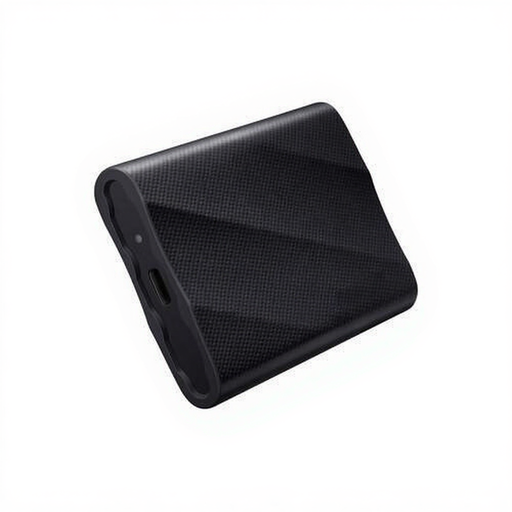
Samsung Portable SSD T9 1TB Black - MU-PG1T0B
Why This Fits Their Persona: Ideal for photographers and videographers who need to process large files on the go. The high speed significantly accelerates workflows, while the rugged casing provides peace of mind during transport.
This model is designed for the USB 3.2 Gen 2x2 standard and is drop-resistant up to 3 meters. It delivers what it promises: speed and durability for professional use.
Read and write speeds up to 2,000 MB/s (requires a compatible port). Hardware encryption for data security.
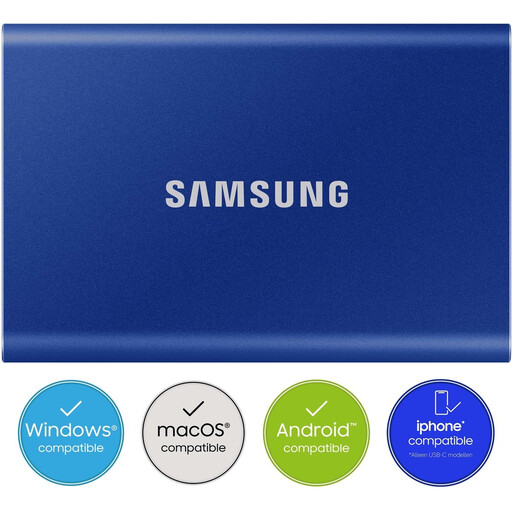
Samsung Portable SSD T7 2TB Blue
Why This Fits Their Persona: With 2TB of storage, there's plenty of room for a large game library. The speed is more than sufficient to play PS4 games directly from the drive on a PS5 and to reduce loading times.
This model offers a realistic speed (up to 1,050 MB/s) that aligns well with the USB ports on consoles and most PCs, without the premium price of a Gen 2x2 model.
Excellent balance of speed, 2TB capacity, and price. The metal casing offers drop protection up to 2 meters.
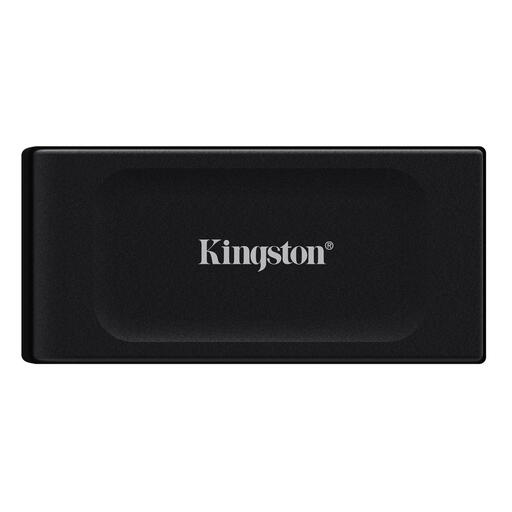
Kingston XS1000 2TB External SSD
Why This Fits Their Persona: For those looking for a reliable, fast, and especially compact solution for backups and carrying files. With 2TB of storage and a weight of just 29 grams, this is a worry-free choice.
This model focuses on what matters to most people: a good price, plenty of storage, and a truly portable size. It avoids the premium price for top-tier speeds that aren't necessary for daily use.
Extremely compact and lightweight. Offers a very good price-to-capacity ratio with 2TB of storage and fast USB 3.2 Gen 2 performance.
Looking for more options?
We have compiled a complete, up-to-date list of products that fully meet these strict selection criteria.
Frequently Asked Questions about External SSDs
How much storage space do I need?
For most people, 1TB is a good starting point for backups and documents. Gamers and content creators should consider 2TB or more. A handy rule of thumb: look at your current storage usage and double it to account for future growth.
Is an external SSD better than an external hard drive (HDD)?
For speed and durability, an SSD is the clear winner. SSDs have no moving parts, making them more shock-resistant and much faster than a traditional external hard drive. HDDs often offer more storage for a lower price and are a great choice for archiving or backups where speed is less of a priority.
Do I need to format my external SSD for Mac?
Yes, in most cases. Most external SSDs are formatted for Windows (NTFS) by default. To use an SSD for Time Machine backups or to store files larger than 4GB, you must format it to APFS using the 'Disk Utility' on your Mac. This process erases all data on the drive, so be sure to do it before you start using it.