
How to Choose the Right External Hard Drive
A full hard drive on your laptop or the fear of losing important photos and documents. Sound familiar? An external hard drive is the logical solution. But the market is saturated with technical jargon, marketing promises, and look-alike models. This often leads to bad purchases: a drive that's too slow for your needs, incompatible with your devices, or unexpectedly fails.
Before you make a choice, it's important to recognise a few common pitfalls.
- The "Up To" Speed Trap: Manufacturers often advertise maximum theoretical speeds, such as "up to 2,000 MB/s." In reality, the speed heavily depends on your own computer, the cable used, and the type of files you're transferring. A fast drive on an old USB port is like a sports car in a residential area: you can't unleash its full potential.
- The Wrong Technology for Your Use Case: The price of a traditional external hard drive (HDD) is temptingly low. For archiving large amounts of data, this is perfectly fine. But if you want to work directly from it, play games, or are frequently on the go, an HDD is too slow and fragile. You might pay less, but you'll end up with a lot of frustration.
- Hidden Inconveniences: Some drives require a separate power adapter, making them less portable. Others are formatted for Windows by default and must be completely erased and reconfigured for use as a hard drive for Mac, a step that is an unexpected hurdle for many users.
What to Look For: Core Specifications Demystified
To avoid a bad purchase, focus on the specifications that truly matter for your situation. Don't get distracted by marketing jargon.
1. Storage Type: HDD vs. External SSD
The most critical choice is between a traditional Hard Disk Drive (HDD) and a Solid State Drive (SSD).
-
HDD (Hard Disk Drive): This is a mechanical drive with spinning platters.
- Advantage: Lots of storage space for a low price. Ideal as a backup drive or for archiving movies and photos you don't need daily access to.
- Disadvantage: Slower, larger, and more susceptible to damage from drops or bumps. Not suitable for running programs or games directly from it. A popular model in this category is the WD Elements series.
-
External SSD (Solid State Drive): This uses flash memory, with no moving parts.
- Advantage: Much faster, more compact, and shock-resistant. A portable SSD is perfect for on-the-go use, editing videos, as extra storage for your SSD for PS5, or if you frequently need to move large files.
- Disadvantage: Higher price per gigabyte compared to an HDD.
2. Speed and Connection
The speed of external storage is determined by both the drive itself and the USB connection. Look for the following standards:
- USB 3.2 Gen 1 (formerly USB 3.0): Speeds up to 5 Gbps (~500 MB/s). Fine for general use and backups.
- USB 3.2 Gen 2: Speeds up to 10 Gbps (~1,000 MB/s). A good standard for fast SSDs like the Samsung T7, suitable for photographers and light video editing.
- USB 3.2 Gen 2x2: Speeds up to 20 Gbps (~2,000 MB/s). This is for the demanding user who needs maximum performance for 4K video files or other heavy tasks.
- Thunderbolt 3/4: Speeds up to 40 Gbps. Especially relevant in professional (Apple) ecosystems.
Always check which USB ports your computer or laptop has to be able to utilise the maximum speed of your new drive.
3. Storage Capacity: How Much Do You Really Need?
The required capacity depends entirely on your usage.
- Up to 512 GB: Sufficient for documents, schoolwork, and carrying presentations. A fast USB flash drive can also be an alternative here.
- 1 TB: A popular choice for most users. A 1TB external hard drive offers enough space for a large photo collection, backups of your laptop, and a collection of movies.
- 2 TB: Recommended for gamers (a 2TB external SSD is ideal for a PS5 or Xbox library), hobbyist photographers, and content creators who work with large files.
- 4 TB and more: Necessary for professional videographers, data analysts, or for anyone who wants to build a complete digital archive.
Our Top Product Recommendations
Based on objective specifications, we have selected a number of models that suit different user profiles.
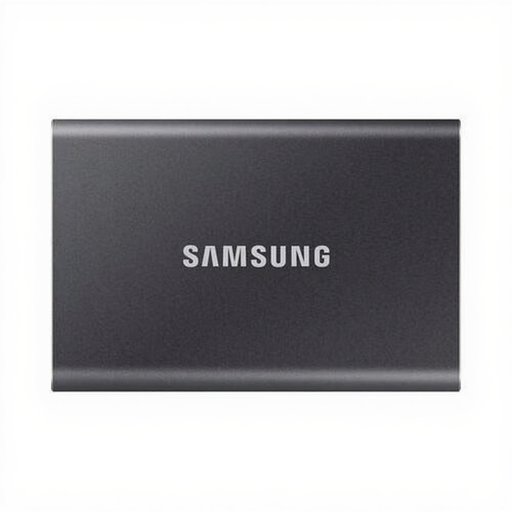
Samsung Portable SSD T7 1TB Grey
Why This Fits Their Persona: Ideal for students and home users who need a fast, reliable, and especially portable hard drive for backups, photos, and documents. Its compact size fits easily into any bag.
This SSD delivers consistent speeds up to 1,050 MB/s, which is a world of difference from a slow HDD. You avoid the pitfall of a drive that's too slow for modern use. It comes with both USB-C to C and C to A cables, preventing compatibility issues.
Advantage: Extremely compact (credit card-sized) and lightweight (58 grams). The metal casing offers drop protection up to 2 meters. Pro: Optional password protection with AES 256-bit hardware encryption.
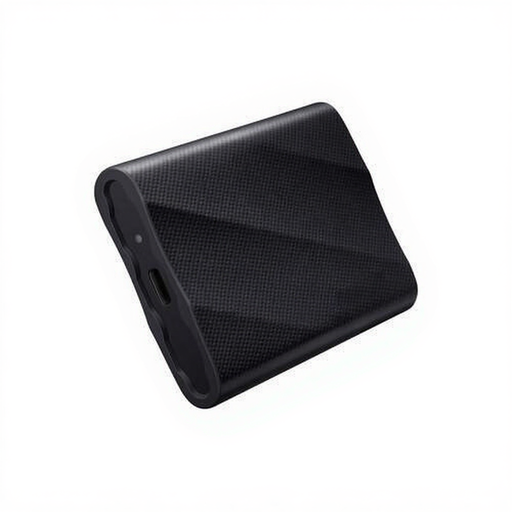
Samsung Portable SSD T9 2TB Black
Why This Fits Their Persona: For the user who refuses to compromise on speed. Perfect for editing 4K video files directly from the drive, or as a lightning-fast expansion for a game library.
This drive bypasses the "up to" speed trap by using the USB 3.2 Gen 2x2 standard. Provided your device supports it, it actually achieves speeds up to 2,000 MB/s. This isn't an empty marketing promise, but a performance level for demanding tasks.
Advantage: Extremely high read and write speeds that minimize waiting times. Pro: Robust design with drop protection up to 3 meters and Dynamic Thermal Guard to prevent overheating and performance throttling.
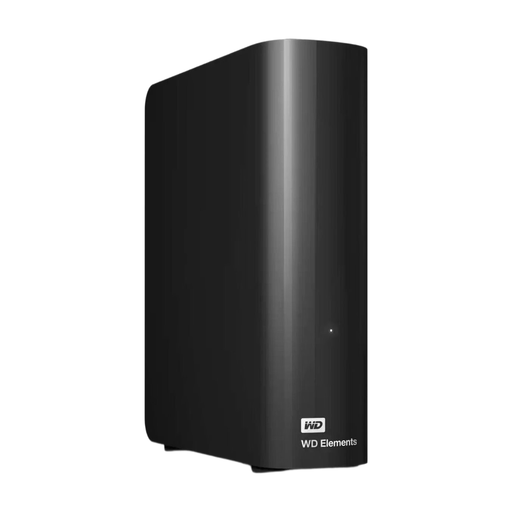
WD Elements Desktop 16TB
Why This Fits Their Persona: For those seeking maximum storage capacity at the lowest price per terabyte. Perfect for creating full backups of multiple computers or archiving a massive media collection.
This model is honest about what it is: a traditional HDD. It avoids the pitfall of overpaying for speed you don't need for archiving. You consciously choose capacity over speed. The drawback of an external power adapter is a clear trade-off for the enormous storage space.
Advantage: Enormous 16 TB storage capacity. Pro: Very low cost per terabyte, making it an economical choice for large-scale data storage. Simple plug-and-play setup on Windows.
Looking for more options?
We have compiled a complete, up-to-date list of products that fully meet these strict selection criteria and local regulations.
Frequently Asked Questions
Do I need to format an external hard drive for Mac?
Yes, often. Many external drives, like the WD Elements, are formatted for Windows by default (in the NTFS format). To use the drive fully on a hard drive for Mac (read and write), you must format it to APFS or Mac OS Extended (Journaled) using Disk Utility. Note: this will erase all data on the drive. Some drives are formatted in exFAT, which works on both Windows and macOS out of the box.
What is the lifespan of an external SSD versus an HDD?
An external SSD generally has a longer lifespan in mobile use. Because an SSD has no moving parts, it is much more resistant to drops and bumps. An HDD is mechanical and can be damaged by a fall, which can lead to data loss. Although SSDs have a limited number of write cycles, this is rarely an issue for the average consumer. Regardless of the type, it is always wise to have a separate backup drive for your most important files.
Can I use an external SSD to store games on my PS5?
Yes, you can. You can use a compatible external SSD to play PS4 games directly from the drive. You can also store PS5 games on the SSD for PS5 to free up space on the internal console storage. However, to play a PS5 game, you must first move it back to the console's internal SSD. Fortunately, this is much faster from an external SSD than re-downloading the game.